
Lesson 12 of 13 · 3 min
Fix unsynced units
Move a unit's reservations out of Unsynced Units and into the right building.
What you'll learn
- Know why a unit lands in Unsynced Units
- Move its reservations to the correct unit
When a reservation arrives from your PMS for a unit Streamhost can't match by external ID, the unit is placed in Unsynced Units. Move it into the right building so its guests get your messaging flow.
Before you start:
- The correct unit must already exist under the correct building.
- Both the unsynced unit and the correct unit must have an External ID, or the move fails.
1. Make sure the correct unit exists
Skip this if the unit is already set up with its external ID.
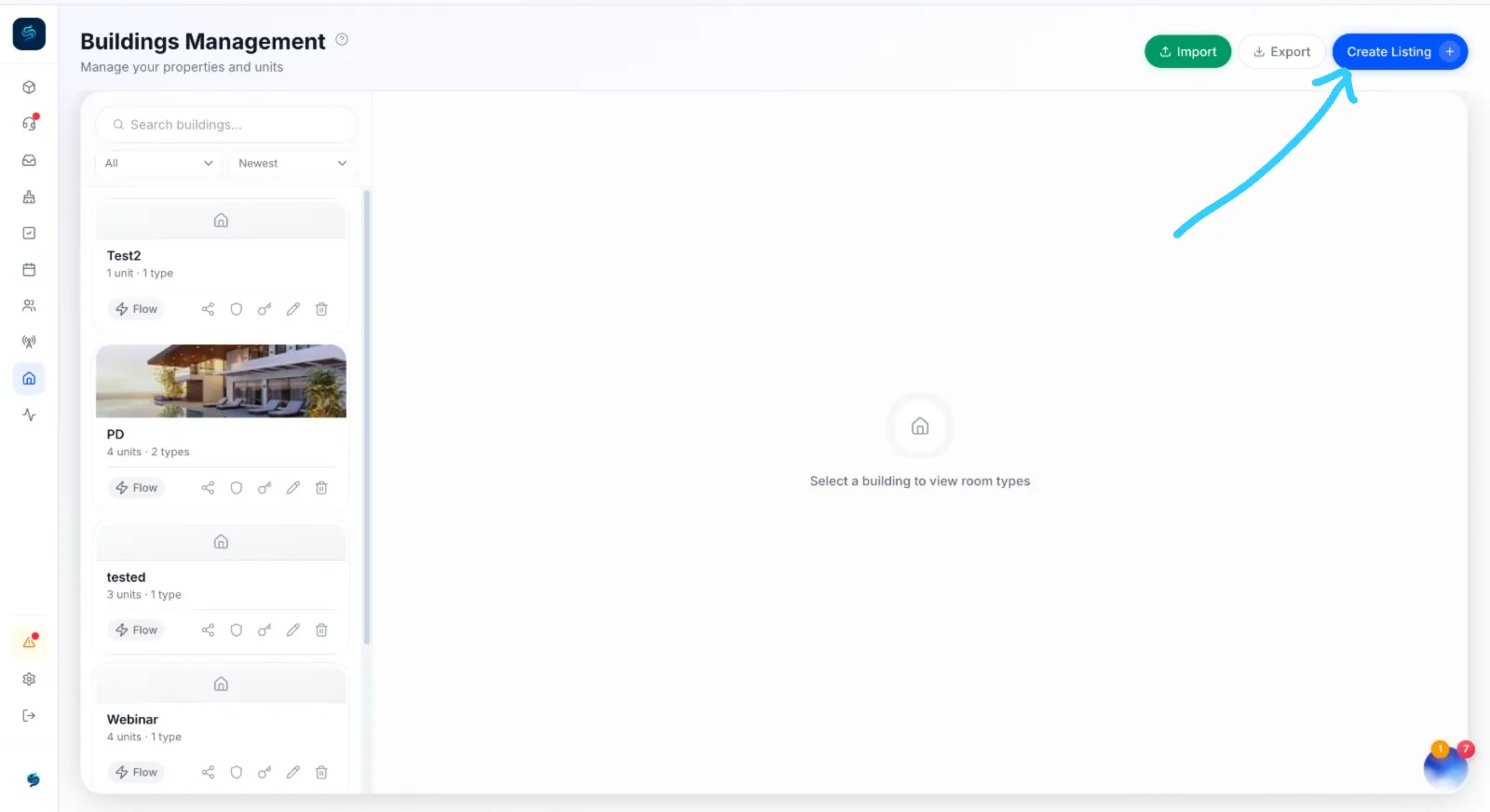
- By hand: select Create Listing, choose the existing building and room type, add the new unit, and enter its External ID.
- By import: import your building listing file, open the new unit and enter its External ID.
2. Check the unsynced unit's external ID
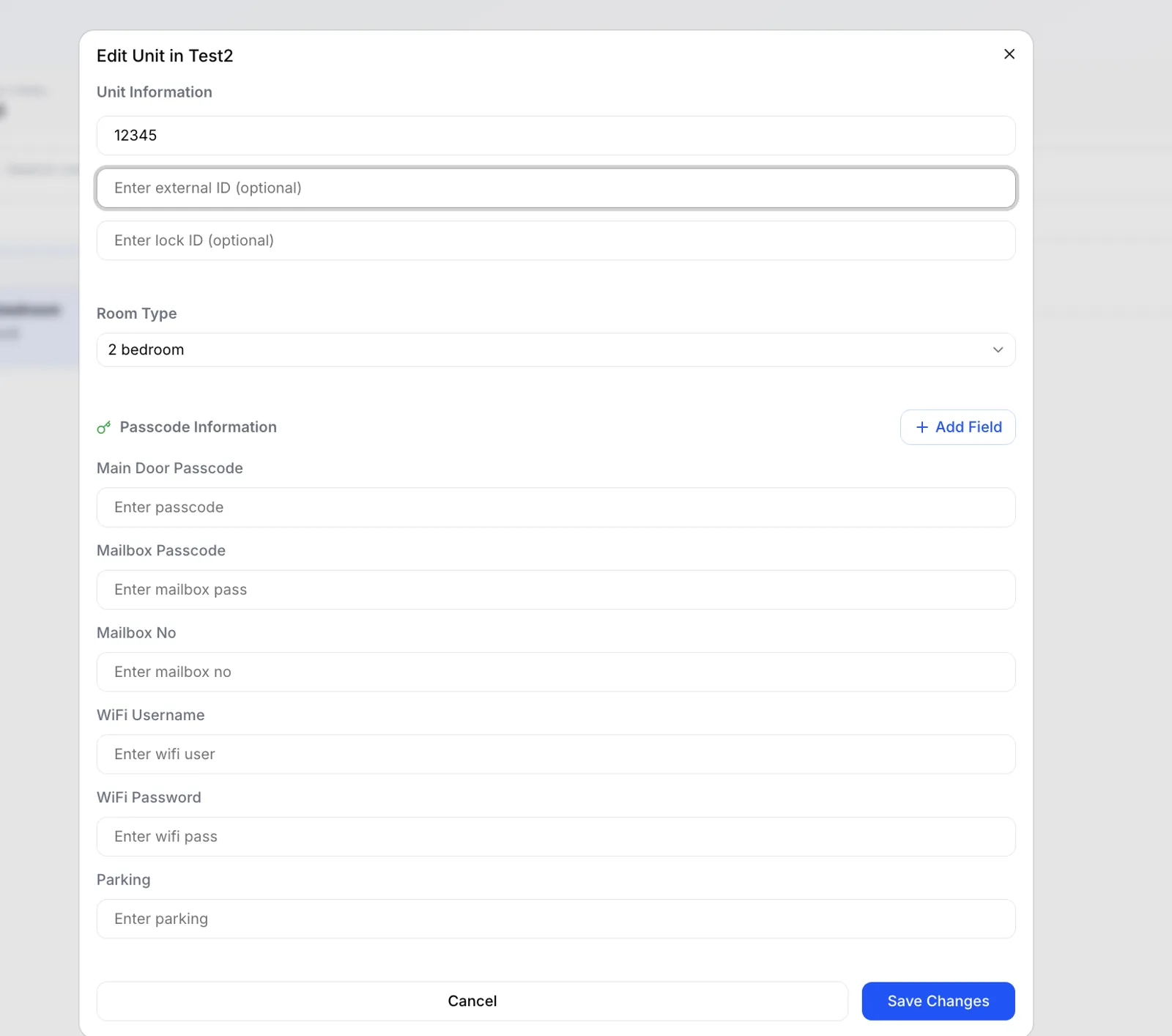
In Unsynced Units, open the unit and select edit (✏️). Check its External ID is filled in.
3. Move the unit
-
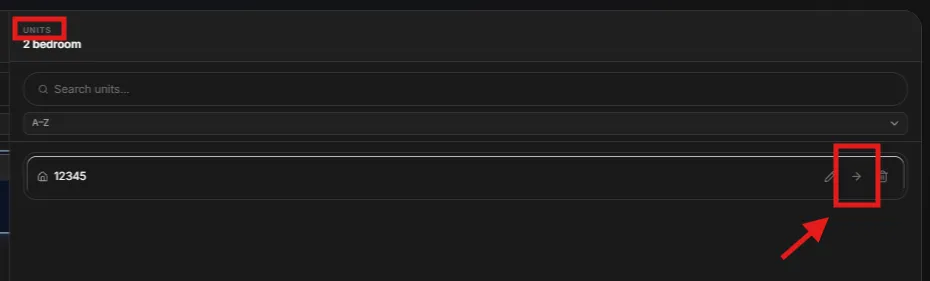
Select the move arrow (→) on the unsynced unit.
-
Under Select target unit, choose the correct unit.
-
Tick Would you like to schedule messages for future reservations? so upcoming guests get your messaging flow.
-
Tick Would you like to delete current unit after completion? to remove the leftover unsynced unit.
-
Select Confirm Move.
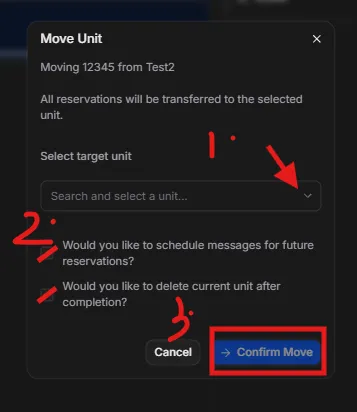
All of the unit's reservations move to the unit you selected.
Up next
- Add new listings later3 minView